Managing Files and applications
| Site: | Open Study at LSHTM |
| Course: | LSHTM Study Skills |
| Book: | Managing Files and applications |
| Printed by: | Guest user |
| Date: | Saturday, 24 October 2026, 5:41 PM |
Description
This section introduces you to some fundamental concepts, basic technologies and popular programs that you will encounter when you start your studies. Your work will consist of files of various kinds. This section offers useful information about managing files.
File Formats and Extensions
In common usage, a computer file is an individual item stored on a computer. A file can usually be opened for view or editing by double-clicking on the icon or filename in a folder or on a desktop. An icon is the small image above or next to the filename that shows the type of file.
File Formats and Extensions
The file format is the structure or layout of information as it is stored in a computer file. File formats differ according to the types of information stored, and the type of file is indicated by the file extension in the filename, which appears after the dot, such as mydocument.docx . Some computers are set by default to hide the file extension, as the icon generally shows you the type, but it useful to change this setting in order to make the file type visible when icons are not being displayed.
There are as many different file formats as there are different programs to process the files. A few of the more common file formats are:
- MS Office documents: .docx, .pptx, .xlsx
- Web pages: .htm or .html
- Images: .jpg or .png or .gif etc
- Portable Document Format files: .pdf
- Executable programs: .exe
- Multimedia files: .mp3 or .mp4 or .wav etc

Operating Systems
Another thing to keep in mind is the difference in operating systems (OS), the system software that supports a computer's basic functions. The operating system on whatever device you use -- whether Windows, Apple/Mac, Android, Linux, Google or any other system -- will affect your access to files, software and apps. Some are only accessible for certain operating systems while others will work differently or require that you install the software specific to your OS. You should know which OS -- and which version -- you have running on your device and keep it updated.
If you ever contact IT support for assistance, they will almost certainly need to know your device and your OS.
At LSHTM contact ITSupport via Service desk, available to registered students, once term starts.

"If you don't know how to do something, try looking on on the internet for instructions or ask for help." Naz, 1st year student.
Working with Media Files
There are various issues that arise when putting media files -- image, video and audio -- online, including how you obtain the file and how you modify it. You can always use your own created media, and in Unit 3 (Intellectual Property) we talk about using other people's content legally and responsibly.
Here, we focus on how you modify the file to make it suitable for using on the web.
Image size and resolution
The first thing to understand when working with image files is that there is a difference between an image's apparent display size and its file size. It's useful to think about it as if the display size -- the proportions on the screen, usually measured in pixels -- is comparable to a person's height. Similarly, the file size -- the amount of space it takes up on your computer or device, usually measured in kilobytes (KB) and megabytes (MB) -- is comparable to a person's weight. These two measurements are often linked, but they are not necessarily directly connected.
An image that looks small on the screen may, in fact, be "heavy" in terms of file size, especially if it has a high resolution. Image resolution refers to the amount of detail in an image and is measured in various ways, including how many pixels per square inch (PPI -- screen only) or dots per square inch (DPI -- used in printing). This means that sometimes a small image can have a surprisingly large file size, either because it is very clear and detailed with high resolution, or that is is still blurry but badly resized and compressed.

This image shows the way the same graphic displays with different resolutions
Resize and compress
Compression is the process that takes an image or other media file with a large file size and reduces it to a smaller file size, which makes it more suitable to use on the web and helps people with slow internet speeds, outdated equipment and limited data allowances. You may or may not also change the display size of an image. Even if your browser or app seems to show the image as fitting on the screen, it may only appear that way and not be properly resized and compressed. Even with high speeds and brand new devices, unnecessarily large images slow things down and bloat data usage for no good purpose.
Many social media apps now resize and compress media automatically and also offer a range of tools for changing the look of images before you post them. However, when you obtain a high quality image or save a photo from your own camera, it is likely that the image will be very large and need resizing and compressing before you use it on a webpage.
There are many free tools available for resizing and compressing images, from nerdy powerful editors to simpler online apps. Here are a few to explore:
- Resize Photos
- JPEG Optimizer
- Paint.net
- IrfanView
- GIMP
- How to reduce the file size of an image in a Word doc
Have you ever tried making an image larger than its original size? Most likely it didn't look good --
that's because the display size changed but the resolution didn't.
Audio and Video
Audio and video files tend to be very large compared to images, and many websites limit the maximum size of files permitted to upload. There are two ways to manage the size of audio and video files:
- Keep them short in duration
- Compress them
Generally, the shorter the duration, the smaller the file, but -- like images with resolution -- the hidden factor is the quality of the media: a short clip may be a very large file because it has been recorded in high quality. The app or tool you use to edit the file will have settings for compressing and reducing the file for output. The file type will also affect the quality: .wav files tend to be high quality and larger files than .mp3 files, etc.
Some sites, such as YouTube will automatically compress and reduce the size of files as they are being uploaded. These sites that allow you to upload and store videos make it easy to link to them and embed them in other sites, which means you do not have to adhere to the strict file maximums of the site where you want to display the media. (This course contains videos embedded from YouTube.)
For your information:
- 5 of the Best Free Video Editing Software Programs for 2025
- 13 of the Best Free Audio Editors in 2021
"Search for free online tutorials about digital skills." Arjun, 2nd-year student
Saving and Storing
Local storage
We all know that keeping a tidy desk can make work easier to manage and more efficient -- not surprisingly, this is also true of your computer. Later we will talk about organising your work and using appropriate tools for study, but in this section the focus is on your computer files.
In general, you should pay attention to:
- what you name your files
- where you save your files
- using folders and organising structures
- saving your document or project often while you're working
- backing up your data files on an external drive or the cloud (see below).
Browse this excellent advice from the University of Cambridge on managing computer files: Organising your data
We talk about protecting your computer -- and your data -- in the Unit on Access sharing and Data.
Cloud storage
If you use more than one computer, or have a smartphone as well as a PC, you've probably experienced the hassle of trying to share your files across them. But don't worry, there's a solution to this problem, and it comes in the form of the cloud.

"The Cloud" refers to various services where information and files are kept on servers connected to the internet. This means that instead of keeping them on a single computer that you have to stay at, any device you use that's online can access the same files. Cloud storage also lets you share files with others, by giving them permission to read, edit and/or save your files and folders.
In terms of losing your work, cloud storage is safer for storing your files -- especially your back ups -- because the cloud services themselves back up all of the data stored on them in many different ways. Your files are less likely to get lost or corrupted than storing them locally. Just be sure you remember your login and password!
This video from Mashable explains how it works and also introduces you to some popular services, such as:
"Be comfortable with your own device, and back up your files every single week without exception!" Will, 1st year student
File Sharing
Sharing in The Cloud
Saving and storing files in The Cloud can be a way for you to access them on different computers and across devices. In addition, the files you store in The Cloud can also be accessed by other people by your permission. Services like DropBox and One Drive allow you to share files with those you designate: you can allow access to folders or individual files and they can download those files and upload new files to the folders you've shared.
Collaboration
Google Drive takes file and folder sharing one step further by allowing collaboration online on shared documents with a suite of document creation tools:
The suite of tools corresponds to the main Office programmes, and you can upload Office versions onto Google Drive and open them to collaborate. However, not all features will display perfectly, so it is probably best just to work in the Google versions.
There are many other collaboration tools which you can find online as well as those that might be contained within your Learning Environment, such as Wikis, which allow users to work together on a shared website or document. Although similar to Google Docs, Wikis are more flexible and allow linking more easily, making them ideal for student collaborative projects.

"If you do not have the skills before starting Uni, take every opportunity you are offered to learn.
Office Applications
Microsoft Office have a suite of applications which are used widely, here is some information and video help on using the apps if you're not already familiar.
Word
Essays, reports and other text-based documents will form the basis of much of your submitted work during your studies at LSHTM. Aside from timed exams, the bad old days of writing by hand or composing on a typewriter are thankfully gone. We are no longer burdened with scribbling draft copies of written work full of crossings-out and mistakes and then having to work late into the night to produce a clean copy for submission.
Word processing was one of the first important benefits of personal computing back in the early 1980s. Suddenly, we could compose right on the screen, freeing us to experiment and be creative in the full knowledge that we could easily change and correct as we work and make a final polished version with little effort.
Microsoft Word has become the most common word processor in general use, and its file format is a standard for sharing documents: those created in Word can be accessed using many other packages.
This video gives you an introduction:
If you have time, watch this video tutorial from Tech for Teachers and Students on Word Basics:
"Familiarise yourself with all the basic functions of Microsoft programmes." Fatima, 1st-year student
Office 365
In addition or instead of offering access to separate Office applications, your institution might have a subscription to Microsoft Office 365, which is a cloud-based collaboration service that brings together a range of features:
- The latest Office desktop applications for up to 5 devices
- Includes: Word, Excel, PowerPoint, One Note, plus many more
- Available on selected Android, iPhone and Windows phones
- Enables Office content viewing and editing on the go
- Exchange Online Mailbox
- Access your email, contacts and calendar
- Also from mobile devices
- Email Storage increased to 50GB
- Skype for Business (IM)
- Instant messaging, video and voice calls
Even if your institution doesn't offer Office 365, students are eligible for a free subscription.
This video explains how it works:
"Don't panic, it can be simple if explained well!" Omar, 1st-year student
Excel
Microsoft Excel is spreadsheet software first developed in the 1980s. Simply put, spreadsheets arrange data in rows and columns of cells and (if necessary) perform calculations. Over the years, Excel has gained capabilities well beyond this and can now be used to manipulate and present data in complicated and sophisticated ways, but it can also be used simply to display information in an organised manner.
If you are studying statistics or any subject that involves tables of data, you will almost certainly need to know how to use Excel competently. But even if you don't need to work with data in this way, Excel can be your go-to programme when you want to display and organise information in the form of tables.
Many of the research articles you will come across during your studies at LSHTM will have used Excel at some point in their data collection, analysis or presentation.
Tabulating Information
Some users never need to do anything more complex with Excel than tabulating information in rows and columns, with no real processing at all. Using a spreadsheet rather than a word-processed table for this kind of thing can have advantages: it's much easier to set up and also allows the stored information to be used in other ways at a later date.
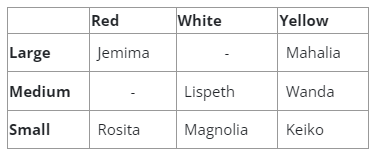
An example of a simple table:
My Chickens
Number-crunching
Only a small proportion of students will be required to do the kind of heavy-duty number-crunching that Excel can achieve, perhaps for manipulating large data sets or performing statistical operations. The best advice is simply to make sure that you learn and keep up with the required skills, which will be available through a number of outlets.
If you find you need more help, look out for the TEL training video's available through Moodle.
This is one area where steady practice and curiosity will pay off -- don't think you can cram those skills at the last minute. Also, performing complex tasks with this kind of software often means several possible approaches, so working in a group of students can be an advantage.
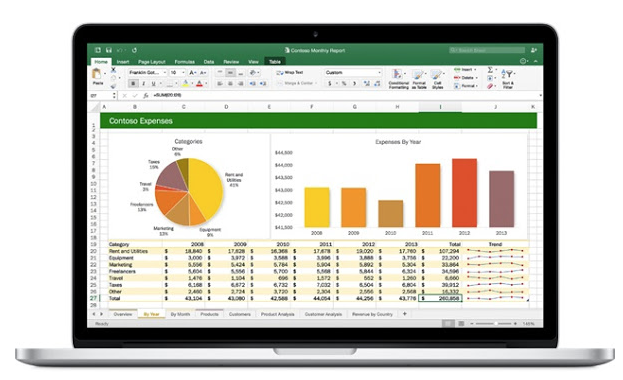
There is a good chance that Excel is the most powerful yet underused IT tool you will routinely encounter. And even if you never need to use its more advanced capabilities, its sheer ability to organise information can be tremendously valuable.
If you have time, watch this video tutorial from Tech for Teachers and Students on Excel Basics:
"Understand the technology you will need to use on your course and get yourself fairly familiar with it." Lu, 2nd-year student
Powerpoint and Sway
PowerPoint
Microsoft Powerpoint, has been around since 1990 and is still the most commonly used software for creating visual aids for presentations, both in higher education and in many workplaces. It is likely that any recorded lectures, seminars or Collaborate sessions will use PowerPoint to deliver information because it is simple to use, flexible and reliable. It is also widely available as part of the Office suite of programs.
PowerPoint is based around the idea of "slides": a series of pages that you can fill with text, images and embedded videos, and which move one by one through the presentation at the click of a mouse. You can also link out to other content, have the presentation run automatically and create transitions between the slides.
For your information:
This video is a tutorial from Tech for Teachers and Students on PowerPoint Basics:
Sway
While PowerPoint is still the popular choice, due to wide familiarity, Microsoft has released another presentation tool called Sway, which is optimised for web use and for collaboration. You may find it suits your needs better, and is definitely worth checking out.
For your information:
"You don't need to be an expert in digital skills but you'd better have foundations in all different digital skills as you will need them when you do presentations, pr
Search Engines
Your library will guide you to finding reliable and scholarly sources for writing research papers, but you will also find yourself using search engines for casual research. Make sure you are aware of the different types of sources you might find.
The LSHTM library have also produced a video which explains where and how you can access library materials. Once term begins, and before you prepare your first assignment we recommend you spend some time looking at the LSHTM Library's Foundation level information skills mini-module, available on Moodle and which you can work through at your own pace. More information on the Library will be available on the Library intranet pages.
How Search Works
A search engine is a system designed to search for information on the world wide web and produce a list of results. It's basically an automated index that continually searches for new web pages and other files stored on the web and updates its results according to a complicated (and secretive) algorithm, the set of rules used to determine the significance of any given web page.
There are lots of different choices, but Google has taken over in recent years as the market leader. Popular search engines include:
If you want to learn more about other search engines, here's a list: The Best Search Engines
Google search principles and techniques
The usefulness of a search engine depends on the relevance of the results it produces, and you can help increase the relevance by learning good techniques, such as using "operators", special words and characters, alternative spellings, etc.
This infographic give you some basic tips on searching Google for the information you need:
- How to be a Google Search Star (download for reference)
Everyone knows how to do a simple search on Google but how many know how to utilise the advanced search options to obtain more relevant search results? This guide from SOAS explains some of the hidden gems that Google has on offer so you can improve your search results for finding exactly what you are looking for:
- Get the most out of your Google searches (download for reference)
"Practice your skills and be aware that university requirements are very different from school, especially that you will need to conduct research and be aware of all types of information" Emma, 3rd-year student
Browsers
A brief word about...
the history of the internet. Did you know?
- The internet is actually just a network of computers -- a very, very big one
- The technology that would become the internet was developed in the 1960s
- The precursor to the internet was called ARPANET and was developed by the US Department of Defense in conjunction with a number of universities
- Email was unveiled as a developing tool in 1972
- In the 70s, Dr. Vinton Cerf created a common language for communicating between computers called TCP/IP (Transmission Control Protocol/Internet Protocol).
- The first webpage contained information about a new project called the "World Wide Web" started by Tim Berners-Lee in 1989. This project would use hyperlinks and a user-friendly graphical interface.
For your information- if you want to learn more about the history of the internet and the web:

Simulation/recreation of the first ever web page (CERN)
Internet/web browsers
The graphical interface we use to access the internet is the browser.
There are a range of internet/web browsers that you can choose to use instead of, or as well as, the one that comes with the computer or mobile device that you have.
Whichever one you choose to use, please ensure that you have the most up-to-date version for security and consistency, otherwise you may find that when accessing documents these do not work in the same way from browser to browser.
The top well know internet/web browsers are:
Moodle, the Virtual Learning Environment we use at LSHTM works with most browsers, but Google Chrome is probably the best.
For your information- if you want to learn more about other web/internet browsers, here's a list:
